When you need to convert OST to PST online
Most people land here with an OST that Outlook refuses to open. That happens because an OST is only a local copy of a mailbox that lives on a server. Outlook keeps it in sync for one account on one profile, and the moment that link breaks, the file is orphaned.
The usual ways it breaks: you left a job and the Microsoft 365 account was switched off. You moved to a new laptop and Outlook built a fresh OST, leaving the old one behind. An Outlook.com address was closed. Or Windows was reinstalled and the old profile is gone. In every case the emails are still inside the .ost on disk, and this OST to PST converter online makes them readable again. If you're comparing tools to find the best OST to PST converter online, start with what each one keeps and leaves out.
Some people convert OST to PST online for a working mailbox too, to keep a backup that doesn't depend on the server, or to move old mail into a different account. One thing to keep in mind: a work mailbox usually belongs to the employer, so only convert mail you're allowed to keep.
Find your OST file
Before you convert OST to PST online, find the file. On Windows, Outlook stores OST files in a hidden folder. The quickest way there is to paste this into the File Explorer address bar and press Enter:
%LOCALAPPDATA%\Microsoft\Outlook
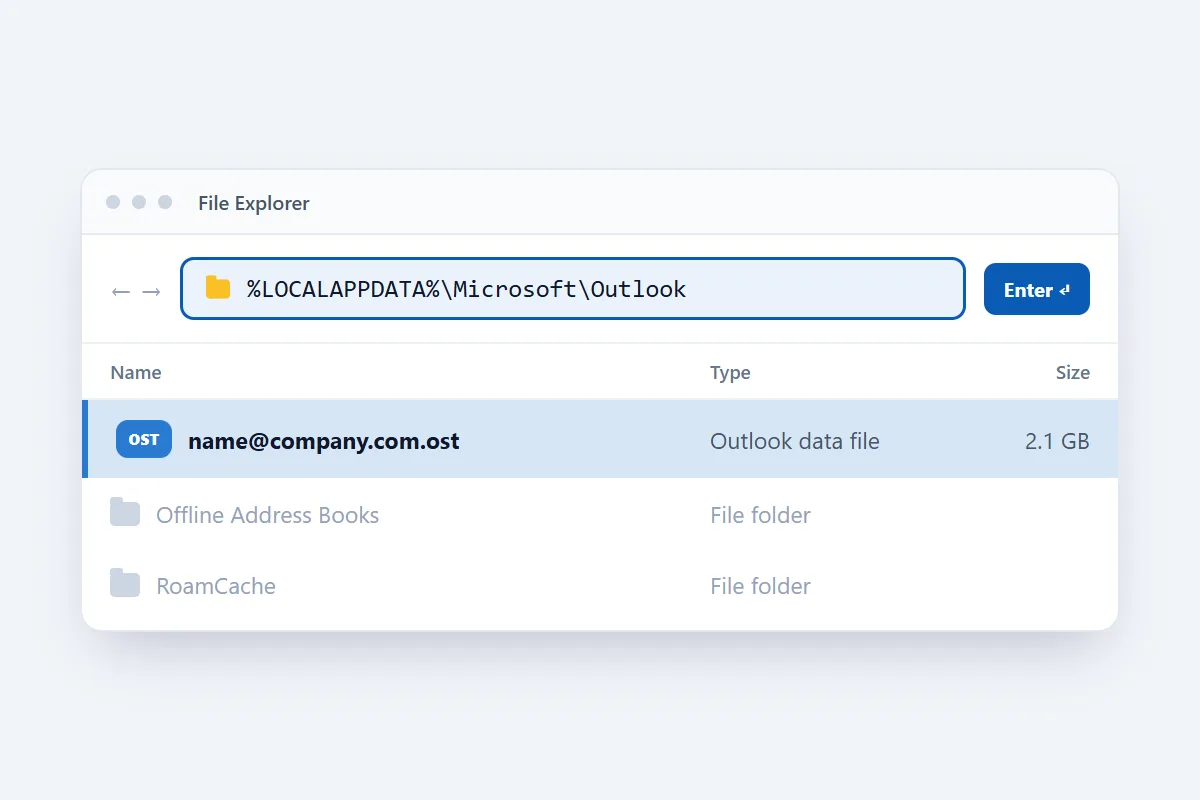
That opens C:\Users\your-name\AppData\Local\Microsoft\Outlook. The OST is normally named after the email address, for example name@company.com.ost. If you're recovering mail from an old drive, look in the same path under that drive's Users folder.
If Outlook still starts, it can show you the file: go to File > Account Settings > Account Settings, open the Data Files tab, select the account and click Open File Location.
Close Outlook before converting. It keeps its OST open while running, and a locked file can't be read. Copying the OST to your desktop first is a good habit anyway, because the original stays untouched.
What ends up in the PST
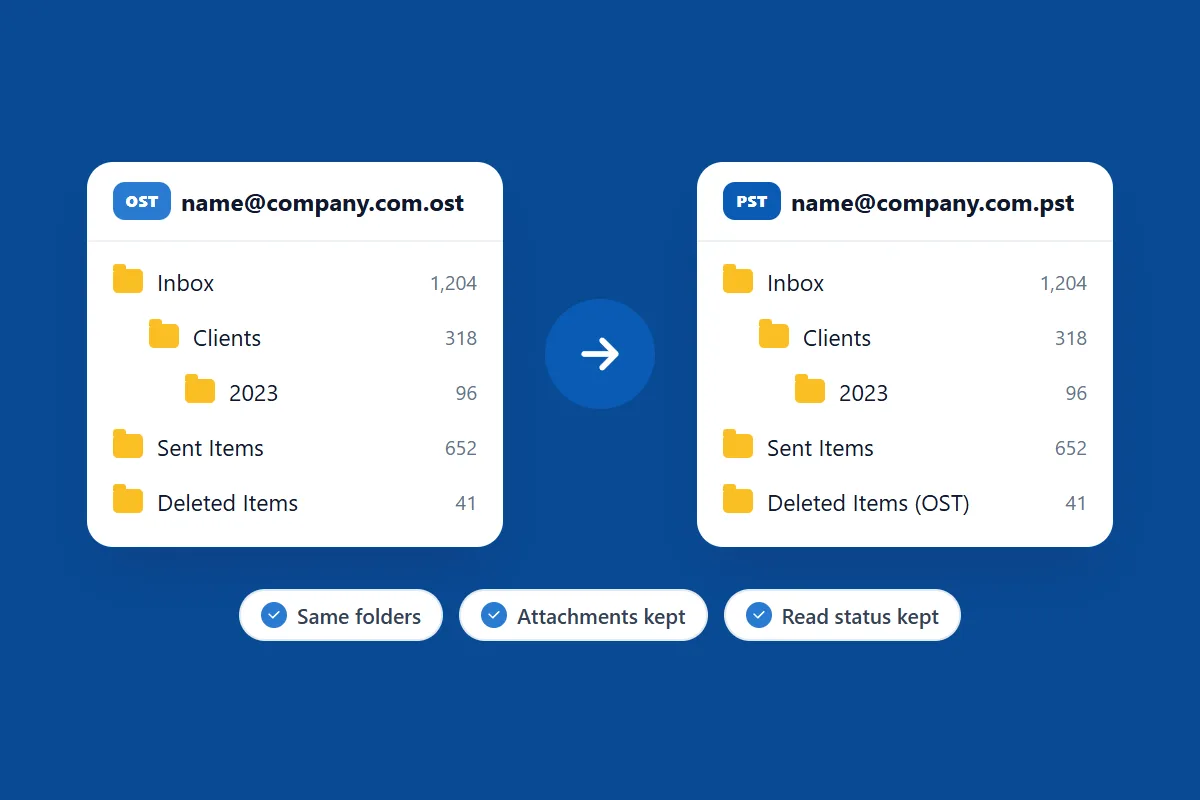
The converter goes through every mail folder in the OST and rebuilds each email in the PST. You get the full message: sender, recipients, date, subject, the formatted body and the original internet headers. Attachments come along, including pictures embedded in the body, and read or unread status carries over too.
Folders keep their names and nesting, so Inbox > Clients > 2023 in the OST is Inbox > Clients > 2023 in the PST. An email that was itself attached to another email arrives as a .eml attachment you can open with a double-click.
A few things are left out on purpose, and it helps to know them before you start:
- Calendar, contacts, tasks and notes. This converter handles email only.
- Meeting invitations and read receipts that sit in mail folders.
- Rules, signatures and account settings, which aren't stored in the OST at all.
Your PST also gets a Deleted Items folder of its own, as every new PST does. The mailbox's deleted mail sits next to it as Deleted Items (OST).
How long it takes to convert OST to PST online
It's quicker than most people expect. In our tests a 2 MB OST converted in under a second, and a 252 MB OST with 2,761 emails, well past the 100 MB limit, took under 7 seconds.
An OST file can be up to 100 MB. For the bigger ones, a desktop or laptop works better than a phone.
Open the PST in Outlook
Once the online OST to PST converter has finished, open the file in Outlook. These steps are for classic Outlook for Windows (Microsoft 365, 2021, 2019 and 2016):
- Go to File > Open & Export > Open Outlook Data File.
- Pick the PST you downloaded. It appears in the folder pane under the name of your OST.
- Open its folders and read your mail as usual.
To copy the emails into a mailbox you use every day, you can drag folders from the PST into that mailbox. For a whole PST at once, use File > Open & Export > Import/Export, choose Import from another program or file, then Outlook Data File (.pst), and follow the wizard.
On a Mac, Outlook imports it through File > Import and Outlook for Windows archive file (.pst).
Is my email private?
Your OST is used for one thing: building the PST you download. We don't read your emails, share them or use them for anything else, and you don't create an account, so there is no profile tied to your mail. The privacy policy spells out the details.
What it has been tested with
We tested this OST to PST converter online with real OST files in both formats Outlook has used since 2003: the standard Unicode OST, and the newer layout that Outlook 2013 and Microsoft 365 write. Every PST the converter produced was opened in Outlook for Microsoft 365 and checked folder by folder.
We also tested well past the 100 MB limit. The biggest test OST was 252 MB with 2,761 emails. Its PST opened with the same count in every folder as the original. A larger 386 MB mailbox with 17 nested folders went through the same engine and kept its whole folder tree. We also had Outlook mark emails unread, delete some, add new ones and create folders inside a converted PST, then reopened it to check that the file stayed healthy.
Very old ANSI files from Outlook 2002 and earlier should open as well, but we haven't had one with email in it to test.
How to choose the best OST to PST converter online
The right tool for you is one that keeps your mail complete and doesn't ask for more than it needs. Whichever tool you try, check these things first:
- Folders and attachments: convert a small OST first, then compare its folders and attachments with the PST.
- Passwords: converting a saved OST shouldn't need your email password, so be careful with any tool that asks for it.
- File size: check the size limit before you start, and compare it with the size of your OST.
- What gets left out: a good tool tells you which items it skips, such as calendars and contacts.
If something goes wrong
"This file could not be opened as an Outlook data file"
Most of the time Outlook is still running and holding the file. Close it, including any Outlook icon in the system tray, and try again, or copy the OST somewhere else first. If it still fails, the file may be damaged or cut short. That's common when it was copied off a failing drive.
Fewer emails than you expected
This one surprises a lot of people. With Microsoft 365 and Exchange accounts, Outlook often keeps only the last 12 months of mail in the OST, and sometimes less on small drives. The setting is called "Download email for the past". Anything older stayed on the server and was never in the file, so no converter can get it back from the OST.
The conversion stops part-way
Reload the page and try the OST to PST conversion again, ideally on a desktop or laptop with a current version of Chrome, Edge, Firefox or Safari. If it stops at the same point every time, the OST may be damaged in that spot.
Still stuck? Send us a message describing what you see. Please don't attach the OST. We never need your mail to help.