When does converting MSG to PST make more sense?
Saving an email as MSG is useful when you want to keep one particular message. The format is less convenient when you want to work with saved messages through an Outlook data file. When you look for the best MSG to PST converter online, make sure it keeps the sender, date and attachments. Here are some practical reasons to convert MSG to PST online:
- Preserving important email evidence: keep saved customer complaints, approvals, invoices and business discussions in an Outlook data file.
- Moving emails out of Windows folders: instead of leaving important messages scattered across folders on your computer, convert them into one file Outlook can open.
- Maintaining project correspondence: store project messages for later review without depending on the original mailbox.
- Preparing emails for Outlook access: make saved MSG content available through Outlook's data file view.
- Keeping a separate copy of a message: create a PST without replacing the original MSG file.
How does the MSG to PST converter online tool work?
You only need the saved MSG files. There is no need to connect to the mailbox the messages originally came from.
Step 1. Locate the saved MSG messages
Find the emails saved in MSG format on your computer. They may be in your Downloads folder, a project folder or an email archive folder.
Step 2. Select the MSG files
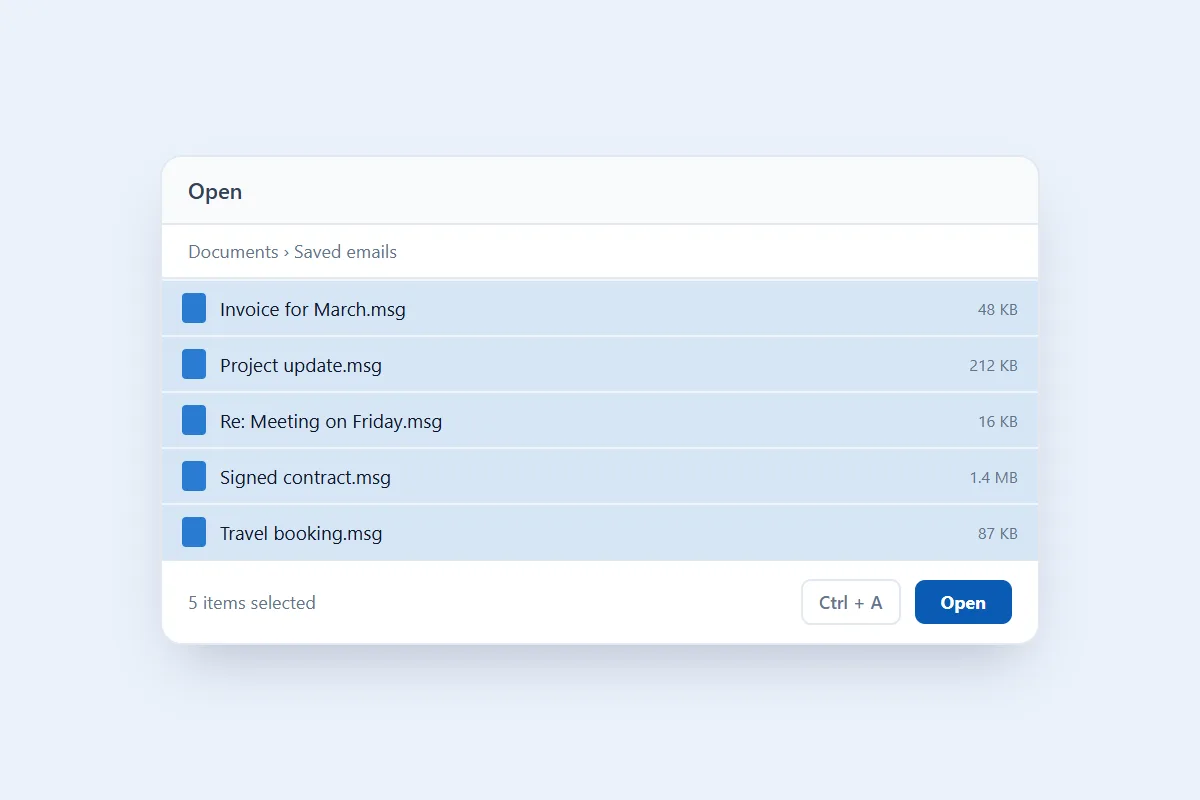
Click Select MSG files in the converter at the top of this page and pick up to 10 files. To pick several, hold Ctrl (Cmd on a Mac) as you click, or press Ctrl + A if the folder holds 10 or fewer. You can also drag the files onto the converter. Check the file names so you convert the emails you intended.
Step 3. Convert the messages
Click Convert to PST. The converter reads the information stored in each MSG file and writes it into a PST file.
Step 4. Download the PST file
When it's finished, click Download PST. Save the file somewhere easy to reach, because you'll need it to open the converted messages in Outlook.
What happens to the original email details during MSG to PST conversion?
An MSG file is more than a text document containing an email. It stores message properties, the email body and any attachments, and these details help Outlook show the message in its original context. The converter writes the following into the PST:
- Message identity: the original subject, sender and recipients.
- Delivery details: To and Cc, the sent or received date, and Bcc when the MSG has it, which is usually only in emails you sent.
- Email content: the message text with its HTML formatting. Emails Outlook stored as rich text are carried over as formatted text.
- Attached files: documents, images and other attachments. An email attached to the message arrives as a .eml attachment.
- Inline content: pictures shown inside the email body stay in place.
- Internet headers: the original message headers, when the MSG file has them.
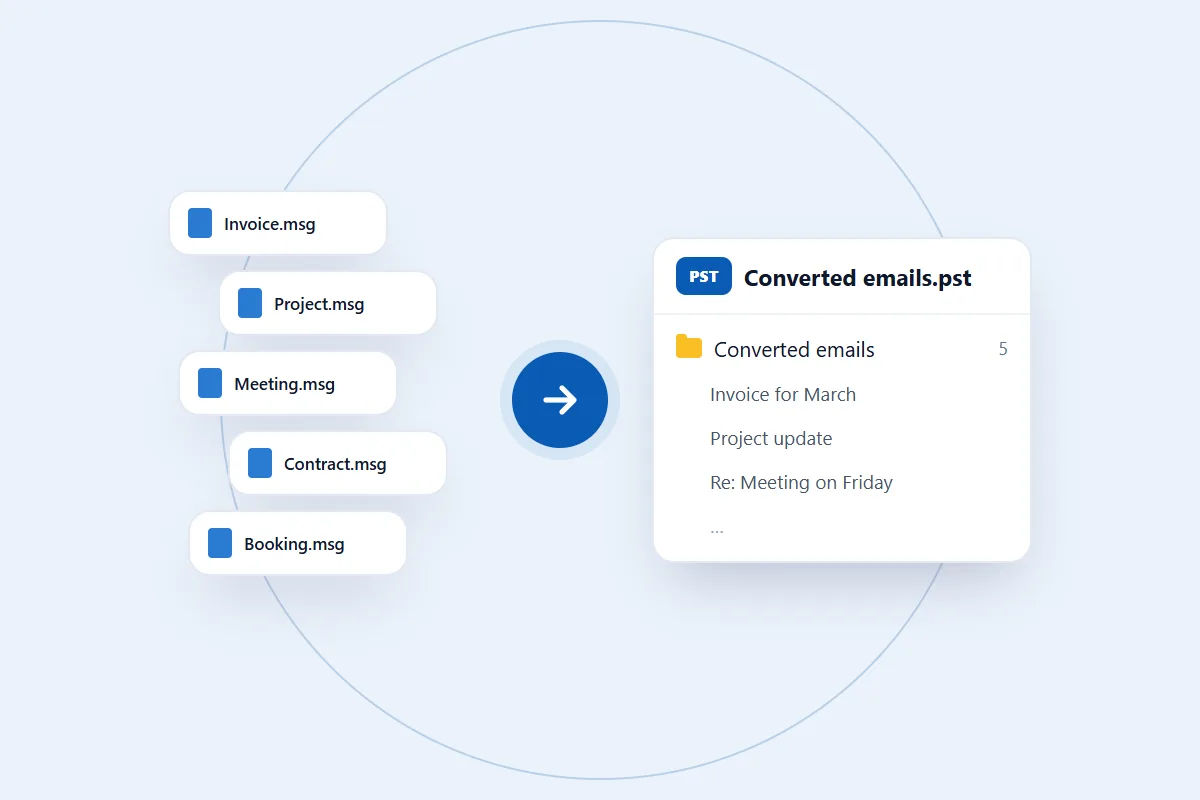
All the emails from one conversion go into a single folder in the PST, called Converted emails. If you convert a single file, the folder is named after it.
An individual MSG file is not a complete mailbox backup. It doesn't contain your entire inbox, Sent Items, contacts, calendar, tasks, Outlook rules or account settings. Only what is in the MSG files you select can be converted.
How does MSG file size affect the conversion?
Not all MSG files hold the same amount of information. One may contain a short text message, while another includes a long conversation, several attachments or embedded images. A message with large attachments takes longer than a small message without any. In our tests 10 MSG files converted in a fraction of a second.
Before you convert MSG to PST online, check the following:
- Make sure the MSG file is completely saved on your computer.
- Check that the file isn't open in another program that may block access to it.
- Keep the page open until the download button appears.
- Keep enough free space on your computer for the PST file.
How to open the converted PST file in Outlook
The converted PST opens separately in desktop Outlook, which is useful when you want to look at the saved emails without changing your mailbox. These steps are for classic Outlook for Windows:
- Open Microsoft Outlook on your Windows computer.
- Select File from the menu.
- Choose Open & Export.
- Click Open Outlook Data File.
- Browse to the downloaded PST file.
- Select it and click OK.
Outlook shows the PST in its folder pane. Expand the data file to find the converted messages. You can read each email and check its details. To keep a message in your regular mailbox, move or copy it to the right Outlook folder.
Is it safe to convert MSG to PST online?
An MSG file can contain private discussions, financial details, customer information or internal business communication. Converting one should not mean giving anyone access to your Outlook account. The converter doesn't ask for your Outlook email address or password, because it works with the saved file and never connects to your mailbox.
Your MSG files are used for one thing only: building the PST file you download. We don't read your email content for any other purpose or share it with others. For more about how files are handled, read our privacy policy.
Which Outlook messages suit this online MSG to PST converter?
MSG files can be created from different types of Outlook messages. Common examples include:
- Received emails: messages saved from your Outlook inbox.
- Sent messages: copies of emails stored in Sent Items.
- Draft emails: saved messages that weren't sent yet.
- Forwarded messages: email files saved after receiving or forwarding a conversation.
- Business correspondence: saved approvals, quotations, support discussions and customer communications.
This converter is made for .msg email files. Other Outlook items saved as .msg, such as contacts, appointments and tasks, aren't supported.
What we tested
We tested with 10 real Outlook MSG files adding up to 0.4 MB. All 10 emails came through in a fraction of a second. Those emails had no attachments, so we also generated MSG test files with To, Cc and Bcc recipients, a picture inside the body and attached files. The recipients came through, and the picture and attached files matched the originals exactly.
We read every PST back to check that nothing went missing. If an MSG file gives you trouble, tell us.
How to find the best MSG to PST converter online
A single saved email can matter a lot, so it's worth checking a tool before you rely on it. The right tool for your files should pass these simple checks:
- Attachments: convert an MSG that has attachments, then open them from the PST.
- Sender and date: compare the converted email with the original in Outlook.
- One PST for several emails: see whether the tool can put your MSG files into one PST. Ours takes up to 10 at a time.
- Account access: a saved MSG doesn't need your Outlook password, so be careful with any tool that asks for it.
Common problems when you convert MSG to PST online
Here are the common issues that can interrupt the process or affect the result, and how to handle them.
1. The converter won't take your MSG file
The file may be damaged, empty or not really an MSG file. Check whether it opens properly in Outlook, then select it again. If the files are in a ZIP archive, extract them first.
2. The conversion can't finish
An MSG file with unsupported or damaged data can stop the conversion, or be left out of it. Try converting another MSG file to see whether the problem is specific to that one.
3. Attachments are missing from the PST
First check whether the attachments are in the original MSG email. Then open the PST again in Outlook and look at the converted message's attachment bar.
4. The PST file won't open in Outlook
Outlook may show an error if the download is incomplete. Download the PST again and open it with File > Open & Export > Open Outlook Data File, using classic Outlook for Windows.
Still having trouble? Contact us and describe what you see. Please don't send private email content. We never need your mail to help.